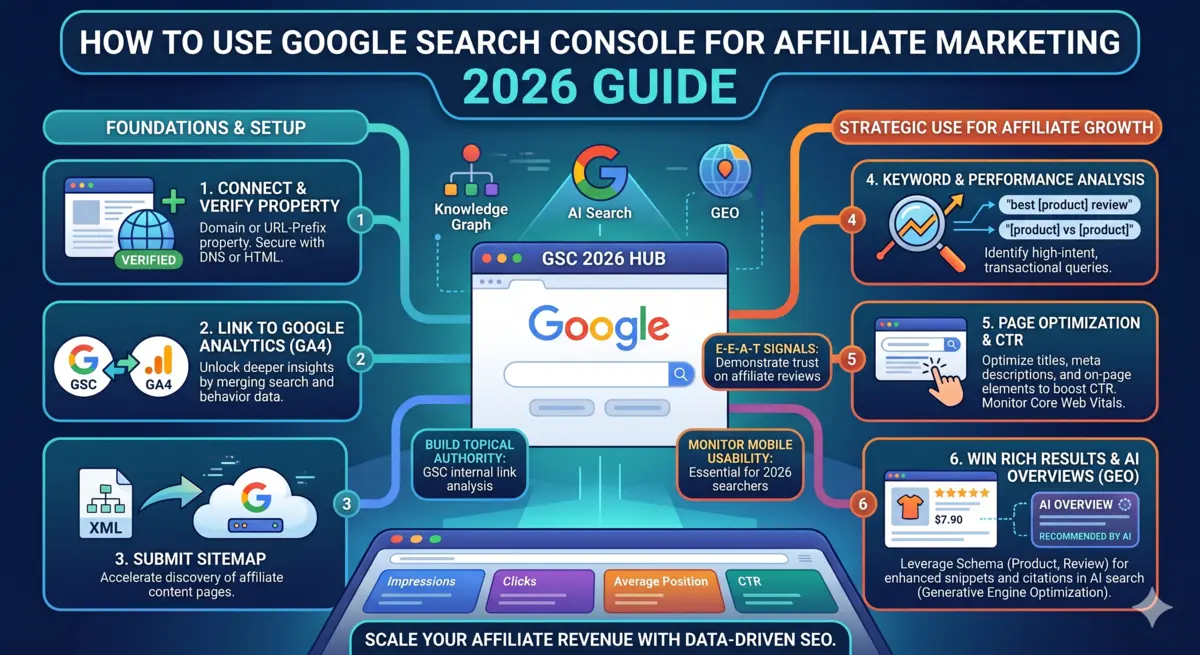
There is a free tool sitting in your Google account right now that tells you exactly which of your affiliate articles Google is showing to searchers, how many people see them, how many people click, and what specific words triggered each impression. — Google Search Console for Affiliate Marketing
Most affiliate marketers set it up once, glance at it occasionally, and leave 80% of the value on the table.
Google Search Console is not a complicated tool. But using it correctly — knowing which reports to open, what numbers to act on, and what patterns to look for — is the difference between guessing why your affiliate site isn’t earning more and knowing precisely what to fix. In 2026, with Google’s AI Overviews surfacing in the majority of commercial searches, GSC has added data layers that didn’t exist two years ago. The affiliates using it weekly are finding hidden opportunities that competitors running on gut instinct will never see.
This guide walks you through everything: setup, the core reports, the weekly workflow, and the specific moves that translate GSC data directly into higher affiliate commissions. No theory padding. No generic SEO advice. Just the actual process, built around the realities of running an affiliate content site.
Already set up your SEO foundation? This article is Article 7 in the Silo 4 series. If you haven’t read the pillar yet, start with SEO for Affiliate Marketing: The Complete 2026 Guide — it covers every foundational concept this tutorial builds on.
What Is Google Search Console and Why Do Affiliate Marketers Need It? – Google Search Console for Affiliate Marketing
Google Search Console is a free tool from Google that shows you exactly how your website performs in Google Search — which pages are indexed, which queries trigger impressions, how many people click through, your average ranking position, and any technical issues preventing Google from crawling or displaying your content correctly.
Think of it this way: Google Analytics tells you what happens after someone lands on your site. GSC tells you what happens before — in the search results. It’s the only tool that shows you real data directly from Google’s systems, not estimates, not third-party approximations. Real clicks. Real impressions. Real positions.
For affiliate sites specifically, GSC answers questions that no other free tool can:
- Which of my articles is Google actually showing to searchers right now?
- What exact words are people typing when Google shows my articles?
- Why is a page getting thousands of impressions but almost no clicks?
- Why hasn’t Google indexed an article I published last week?
- Which articles are slowly losing rankings and need updating?
- Are my rich results — FAQs, HowTo steps, breadcrumbs — actually being detected?
Each one of those questions has a direct line to affiliate revenue. An article with 10,000 monthly impressions and a 1% CTR is sending you 100 visitors. Improve that CTR to 4% and you’ve quadrupled your traffic without publishing a single new word.
Is Google Search Console Free?
Yes — completely and permanently free. There are no usage tiers, no premium plan, no usage limits. Every WordPress affiliate site should have GSC connected from the moment the domain goes live, ideally before you publish your first article.
The only requirement is that you verify ownership of your domain, which takes about two minutes using the methods below.
What Is the Difference Between Google Search Console and Google Analytics?
This question comes up constantly from newer affiliate bloggers and it’s worth answering clearly, because both tools are essential and they do completely different things.
| Google Search Console | Google Analytics 4 | |
|---|---|---|
| What it measures | How Google finds and ranks your site | What visitors do on your site |
| Data source | Google Search systems | JavaScript tag on your pages |
| Key questions answered | Which queries rank? What CTR? Are pages indexed? | How long do visitors stay? What do they click? What converts? |
| Best used for | SEO strategy, content optimization, technical SEO | User behaviour, conversion tracking, audience insights |
| Cost | Free | Free |
The short version: GSC is your Google-facing diagnostic tool. GA4 is your visitor-facing analytics tool. You need both. They complement each other — GSC shows you which keywords send traffic, GA4 shows you what that traffic does once it arrives.
How to Add Your Affiliate Site to Google Search Console
Setting up GSC correctly from the start means all your data is accurate and properly attributed from day one. Here is the exact process.
Step 1: Go to Google Search Console
Sign in to your Google account and go to Google Search Console. Click Add Property.
Step 2: Choose Your Property Type
You will see two options: Domain and URL Prefix.
Choose Domain if you want to track all URLs across all subdomains and protocols (http, https, www, non-www) under one property. This is the recommended option for affiliate sites — it captures everything in one clean view.
Choose URL Prefix if you only want to track a specific URL version, such as https://thereviewlabs.run.place/. This is easier to verify but less comprehensive.
Step 3: Verify Ownership
For Domain verification, you add a DNS TXT record through your domain registrar. For URL Prefix verification, the easiest method for WordPress sites is to use the Google Analytics verification option — if GA4 is already installed and connected to the same Google account, GSC verifies automatically.
Step 4: Submit Your Sitemap
After verification, go to Sitemaps in the left sidebar. Enter your sitemap URL — for RankMath users this is yoursite.com/sitemap_index.xml — and click Submit.
Your sitemap tells Google every page that exists on your site and helps it prioritise crawling. Without a submitted sitemap, new pages can take weeks to be discovered on a new domain. With it, Google typically crawls new content within days.
Using RankMath? Your sitemap is auto-generated at
thereviewlabs.run.place/sitemap_index.xml. Verify this URL exists in your browser before submitting. Full RankMath setup guide: How to Do On-Page SEO for Affiliate Sites in 2026
How to Check Your Affiliate Site Traffic in Google Search Console
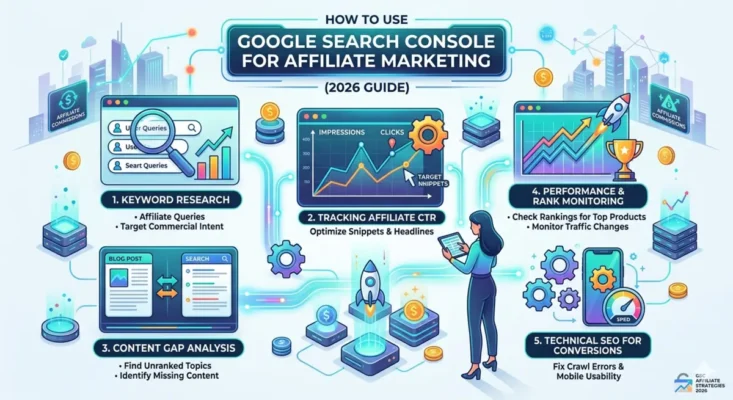
The Performance report is the most important section of GSC for affiliate marketers. It is where all the keyword, CTR, and traffic intelligence lives.
Open Performance → Search Results. You’ll see four core metrics at the top:
| Metric | What It Means for Affiliate Sites |
|---|---|
| Total Clicks | How many times someone clicked your site from Google Search |
| Total Impressions | How many times your pages appeared in search results |
| Average CTR | The percentage of impressions that turned into clicks |
| Average Position | Your average ranking position across all queries in the selected period |
Set your date range to the last 28 days as your default view. This gives you enough data to spot patterns without the noise of longer periods. For detecting content decay or algorithm impact, use the Compare function to view the current 28 days against the previous 28 days — the “Difference” column immediately surfaces your biggest gainers and losers.
What the numbers actually mean for affiliate revenue:
A site with 50,000 monthly impressions and a 2% average CTR is generating 1,000 clicks per month from Google. If your affiliate conversion rate is 3% (30 clicks per 1,000 visitors leading to a commission), you’re earning commissions on roughly 30 affiliate clicks monthly.
Now improve average CTR from 2% to 4% through better meta titles — still 50,000 impressions, but now 2,000 clicks. Same conversion rate: 60 affiliate commissions. You have doubled your affiliate earnings without writing a single new article, without building a single backlink, without spending a penny.
That is why the CTR data in GSC is the first thing serious affiliate marketers open every Monday morning.
Does Google Search Console Show Keyword Rankings?
Yes — and it shows you something more valuable than the ranking position alone. It shows you the ranking position alongside the impressions, clicks, and CTR for each keyword, in the same report.
In the Performance report, click Queries (it should be selected by default). You will see a table showing every keyword your site appeared for in Google Search over the selected period, with columns for Clicks, Impressions, CTR, and Position.
Three filters that unlock the most valuable affiliate keyword data:
Filter 1: Position 6–15 keywords (the low-hanging fruit)
Sort the Queries report by Position. Find all keywords where your site is ranking between positions 6 and 15. These are articles sitting just off page one — they are getting impressions, but almost no clicks because most searchers never scroll past position 5.
These are your highest-priority content update targets. An article sitting at position 7 for a keyword with 2,000 monthly impressions might be generating 60 clicks per month (3% CTR at position 7). Move it to position 3 and you’re looking at 240+ clicks per month at a 12% CTR. That single content improvement could triple the affiliate traffic to that article.
Filter 2: High-impression, low-CTR keywords
Sort by Impressions (highest first), then scan for rows where CTR is below 2% despite strong impression numbers. These are the pages where Google is already showing you prominently — but something about your title or meta description is causing searchers to skip your result and click a competitor.
The fix is almost always in the title tag. For affiliate sites, titles that underperform tend to be too generic, lack a year, or miss an emotional trigger that makes the searcher feel your article specifically answers their query. A title change takes five minutes. The CTR improvement can be visible within days.
Filter 3: Keywords you didn’t know you were ranking for
This is the one that genuinely surprises people every time. Open Performance, click on your highest-traffic article in the Pages tab, then switch to the Queries tab with that page filtered. You will see every keyword Google is ranking that article for — often dozens or hundreds of keywords beyond your intended focus keyword.
These “accidental rankings” are content opportunities hiding in plain sight. If your article on ClickBank is also appearing for searches about Digistore24, that is a signal to either add a Digistore24 section to that article or create a dedicated Digistore24 article and link them together.
How to Find Low-Competition Keywords in Google Search Console
GSC contains one of the most overlooked free keyword research tools available — and it requires no sign-ups, no credits, and no paid plan.
Here is the exact process:
Step 1: In the Performance report, click the Pages tab.
Step 2: Click on any article you want to expand keyword opportunities for — ideally your highest-traffic pages or your best commercial-intent articles.
Step 3: Switch back to the Queries tab with that page filtered. You now see every keyword triggering impressions for that specific article.
Step 4: Look for:
- Keywords with 50–500 impressions/month and position 8–20 (reachable with a content update)
- Question-format keywords (“how to”, “what is”, “does”, “can I”) that you haven’t explicitly answered in the article — add an FAQ section targeting them
- Comparison keywords (“vs”, “or”, “compared to”) that suggest a comparison section or standalone comparison article
Step 5: Export the queries as a CSV using the Download button. Sort by position, filter to positions 6–20, and you have a prioritised list of content improvement opportunities for that single article.
Do this for your top 10 articles and you will have more content optimisation work than you can complete in a month — all based on real data about what Google is already trying to show you for.
Pair this with keyword research strategy: Keyword Research for Affiliate Marketing in 2026 — covers how to layer AnswerThePublic data and GSC data together for a complete keyword picture.
Why Is My Affiliate Site Not Showing in Google Search Console?
If your site isn’t appearing in GSC data or your articles aren’t getting impressions, there are four common causes specific to affiliate sites:
Cause 1: The article isn’t indexed yet
New articles on new domains take time to be crawled and indexed. Don’t wait passively — use the URL Inspection tool (enter your article URL in the search bar at the top of GSC) to check the indexing status immediately after publishing. If the status shows “URL is not on Google,” click Request Indexing. This pushes your page into Google’s crawl queue within hours rather than weeks.
Make this a habit: every time you publish an article, spend two minutes in GSC requesting indexing. It consistently accelerates the time from publication to first impressions.
Cause 2: Tag pages are consuming crawl budget
If your WordPress site has dozens or hundreds of tag archive pages indexed, Google is spending crawl budget on thin, near-duplicate pages instead of your real content. The symptom in GSC is your new articles taking weeks to appear in the Queries report while your tag pages clutter the Coverage report.
The fix: set all tag pages to noindex in RankMath. Go to RankMath → Titles & Meta → Tags → set Robots Meta to noindex. Your crawl budget immediately concentrates on your actual affiliate articles.
Cause 3: The URL has a robots.txt block or noindex tag
Use URL Inspection in GSC on any article that isn’t getting indexed. If you see “Excluded by ‘noindex’ tag” or “Blocked by robots.txt,” those are configuration errors. The noindex tag typically comes from accidentally setting a post to draft-preview mode or a WordPress plugin applying noindex to certain post types. Check your RankMath meta settings for the specific post.
Cause 4: Thin or duplicate content signals
GSC may show the status “Crawled — currently not indexed” for some pages. This means Google found and crawled the page but decided not to include it in the index. The most common cause for affiliate sites is content that is too short, too thin, or too similar to other pages on the same site. The fix is either to improve the content significantly (add depth, original insight, updated data, FAQ sections with schema) or to canonicalise the weaker version to the stronger version.
How to Fix Indexing Errors in Google Search Console
The Indexing → Pages report (formerly Coverage) is where GSC categorises every page on your site into four states: Indexed, Not Indexed, Error, and Excluded.
For a healthy affiliate site, the goal is simple: every article you want to earn commissions from should be in the Indexed column with a green checkmark.
The errors that matter most for affiliate sites:
“Page with redirect” A page that was previously indexed is now redirecting. This is normal when you restructure URLs — verify the redirect destination is correct and that the destination page is indexed.
“Soft 404” Google visited the URL and the page loaded, but the content was so thin or irrelevant that Google treated it as a 404. This happens on affiliate sites when a review article is very short, lacks genuine content, or mostly consists of affiliate links with minimal original writing. Fix: add substantial original content, first-hand experience, FAQ sections, and comparison data.
“Duplicate without user-selected canonical” Google found multiple pages that look similar and isn’t sure which one to index. This commonly happens on affiliate sites with pagination, parameter-based URLs, or near-duplicate reviews. Fix: set explicit canonical URLs in RankMath for every article to specify the preferred version.
“Crawled — currently not indexed” Covered above — improve content depth or consolidate with a stronger existing article.
Check the Indexing report monthly and resolve any new errors before they accumulate into a pattern that signals low site quality to Google’s systems.
What Should I Look for in Google Search Console for Affiliate Sites? (The Weekly Workflow)
This is the actual weekly workflow for running an affiliate site on GSC data. Fifteen minutes per week, focused on the metrics that move revenue.
Monday: CTR Audit (5 minutes)
Open Performance → Queries. Sort by Impressions (high to low). Scan for any keyword with 500+ monthly impressions and a CTR below 2.5%. Open the corresponding article, look at the title tag, and ask: is this title as compelling as it could be? Does it include the year? Does it have a bracket or number? Is it under 60 characters? Make one title change per week — track the CTR movement over the following two weeks.
Wednesday: Position 6–15 Check (5 minutes)
Filter the Queries report to show only keywords where Position is between 6 and 15. Sort by Impressions (high to low). The top five results are your highest-priority content improvement targets. Pick one article per week to update — add a missing section, update statistics, improve the FAQ block, strengthen the introduction. Small improvements compound over time and consistently push pages from position 8 to position 3.
Friday: Indexing Health Check (5 minutes)
Open Indexing → Pages. Check the Not Indexed count against last week. If it has grown, investigate the new exclusions. Confirm all articles published in the last seven days have been indexed (use URL Inspection to verify). Submit for indexing any articles that haven’t been crawled yet.
That is the entire weekly GSC routine. Forty-five minutes per month of intentional data review will outperform most affiliate sites that check their analytics occasionally and react without a system.
How to Improve CTR Using Google Search Console
CTR improvement is the fastest revenue lever available on any affiliate site with existing rankings. Unlike content creation (which takes weeks to index) or link building (which takes months to compound), a title tag change can produce measurable CTR improvements within 48–72 hours of Google re-crawling the page.
The four-step CTR improvement process:
Step 1: Identify underperforming pages
In the Performance report, add a filter: CTR is less than 3%. Sort by Impressions high to low. These are pages where Google is already giving you visibility that you’re not converting into clicks.
Step 2: Analyse the SERP context
For each underperforming page, Google the target keyword in an incognito window. What do the top 3 results’ titles look like? What emotional triggers, numbers, or benefit statements are they using? Your title needs to be clearly more compelling than what’s already ranking above you.
Step 3: Rewrite the title with conversion intent
For affiliate sites, the title formulas that consistently increase CTR:
- Add the current year: “Best ClickBank Products 2026” outperforms “Best ClickBank Products”
- Add a specificity bracket: “(Tested & Ranked)” or “(Free Methods)” or “(With Proof)”
- Lead with the benefit: “How to Double Your Affiliate Commissions with Google Search Console”
- Use a number: “7 GSC Reports Every Affiliate Marketer Needs to Check Weekly”
Step 4: Track the change
After updating the title, use GSC’s Compare feature to track CTR before and after. Compare the 14 days before the change against the 14 days after. A successful title rewrite will show an increase in CTR with stable or improving impressions.
One important note: never change a title and slug simultaneously. Changing the slug requires a 301 redirect and resets the page’s history in GSC. Change only the SEO title (in RankMath’s meta title field), never the URL, when doing CTR optimization.
How to Use Core Web Vitals in Google Search Console
The Experience → Core Web Vitals report shows how your pages perform on the three user experience metrics Google uses as ranking signals: Largest Contentful Paint (LCP), Interaction to Next Paint (INP), and Cumulative Layout Shift (CLS).
Pages are rated Good, Needs Improvement, or Poor. Any page rated Poor is actively being disadvantaged in rankings relative to a competitor with equivalent content but better Core Web Vitals scores.
For affiliate sites on WordPress with GeneratePress, the most common Core Web Vitals issues are:
Slow LCP (over 2.5 seconds) Usually caused by large uncompressed images. Fix: compress all images to under 100KB using ShortPixel before uploading. GeneratePress is already one of the lightest themes available — if LCP is still slow, the bottleneck is almost always images or slow hosting.
Layout Shift (CLS above 0.1) Usually caused by images loading without defined dimensions, or ad elements appearing and pushing content down. Fix: add explicit width and height attributes to all images. In WordPress, the Gutenberg editor does this automatically for new image blocks — older images inserted via classic editor may need updating.
Slow INP (over 200ms) Usually caused by heavy JavaScript from plugins. Fix: use WP Rocket or W3 Total Cache to defer non-essential JavaScript. Identify the specific slow plugins using the free Chrome DevTools Performance panel.
Check Core Web Vitals in GSC monthly. Fixing a Poor-rated URL to Good can produce a noticeable rankings improvement for that page — Google’s documentation confirms that CWV is a tiebreaker ranking signal when content quality is otherwise equal.
Complete technical SEO checklist for affiliate sites: How to Do On-Page SEO for Affiliate Sites in 2026
Does Google Search Console Show Backlinks?
Yes — GSC includes a Links report that shows your site’s backlink profile as Google understands it. It is less comprehensive than a dedicated backlink tool like Ahrefs, but it is free and comes directly from Google’s own data.
The Links report shows:
- Top linking sites — the domains with the most links pointing to your site
- Top linked pages — which of your pages have the most external backlinks
- Top linking text — the anchor text used in backlinks to your site
For affiliate sites, the Links report is useful for:
Monitoring your backlink acquisition progress Check whether new backlinks you’ve earned through guest posting, Quora, or outreach are appearing in GSC. New links typically appear within 2–4 weeks of Google crawling the linking page.
Identifying lost links If a site that previously linked to you disappears from the Top Linking Sites report, a link may have been removed. Cross-reference with your outreach records and consider a polite email to recover it.
Checking internal link distribution The internal links section shows which of your pages receive the most internal links from your own site. For a healthy silo architecture, your pillar articles should have significantly more internal links than your supporting articles — GSC confirms whether your internal linking structure is actually working as intended.
Complete link building guide: How to Build Backlinks for Affiliate Sites in 2026
How Often Should I Check Google Search Console?
The honest answer is weekly — but not all reports weekly.
Here’s the frequency framework that makes sense for an affiliate site actively growing its content:
| Report | Check Frequency | Why |
|---|---|---|
| Performance → Queries (CTR audit) | Weekly | Fastest revenue lever — title changes act immediately |
| Performance → Pages (traffic by page) | Weekly | Catch content decay and traffic drops early |
| Indexing → Pages | Weekly | Ensure all new articles are being indexed |
| URL Inspection (for new posts) | Every publish | Submit every new article for indexing immediately |
| Core Web Vitals | Monthly | CWV scores change slowly; monthly is sufficient |
| Links report | Monthly | Backlink profile changes slowly |
| Manual Actions | Monthly | Check for any penalty notifications from Google |
| Rich Results report | After schema changes | Verify schema is being detected correctly after updates |
The temptation when starting out is to check GSC constantly — refreshing the data multiple times per day to watch rankings move. Resist this. GSC data updates with a 2–3 day lag and daily fluctuations are mostly noise. Weekly review, disciplined and systematic, extracts far more value than daily anxious refreshing.
How to Use GSC to Monitor Algorithm Update Impact on Your Affiliate Site
Google releases multiple core updates and targeted algorithm updates every year. When one hits, affiliate sites are often among the first to see significant changes — because affiliate content is one of the categories Google scrutinises most closely for quality.
When a major update is announced (Search Engine Roundtable and Search Engine Land both report these within hours of detection), immediately open GSC and do the following:
Step 1: Set a comparison date range Use Performance → Compare. Set the current 7–14 days against the same period before the update announcement.
Step 2: Sort by Difference in Clicks (lowest first) The pages at the bottom of this sorted view are your biggest traffic losers. These are the articles the update most affected.
Step 3: Identify the pattern Are the losing pages all in one category? All reviews? All comparison articles? All thin supporting articles? In most cases, the biggest drops cluster around similar formats — templated comparisons, broad “best of” lists, or thin reviews that lack firsthand product experience. Identifying the pattern tells you what to fix and what to leave alone. Tinystartups
Step 4: Prioritise recovery actions For each affected page, apply the standard quality improvement checklist: add original first-hand perspective, update any outdated statistics, strengthen the FAQ section with schema, improve the internal link density to the pillar, and request re-indexing after updates are complete.
Content that clearly demonstrates firsthand use is seeing meaningful gains, often in the range of 15 to 25 percent in visibility following recovery actions. These pages include original screenshots, real workflows, and specific observations that could not be pulled from a product landing page. Tinystartups
Can Google Search Console Improve Affiliate Sales?
Directly? No — GSC is a diagnostic tool, not a conversion tool. Indirectly? Absolutely, and the mechanism is straightforward.
GSC surfaces data that directly enables three types of affiliate revenue improvements:
1. More traffic from existing rankings CTR optimisation — covered extensively above — increases the traffic you receive from search positions you already hold. More traffic to affiliate articles means more affiliate link clicks at the same conversion rate.
2. Ranking improvements from content updates The position 6–15 keyword data identifies articles one or two optimisation cycles away from page-one rankings. A page moving from position 11 to position 4 can increase traffic 3–5x with no new content required.
3. New content ideas from accidental rankings The hidden keywords report (filtering a page’s queries in GSC) consistently surfaces topics your audience is searching for that you haven’t explicitly covered. Each of those is either a new article or a section addition that expands your content’s reach and affiliate opportunity.
The affiliates who consistently grow their income are not always the ones publishing the most new content. They are often the ones spending time in GSC every week, systematically improving what they already have.
How Do I Use GSC With RankMath for Maximum Impact?
When RankMath and GSC are connected — via RankMath → General Settings → Webmaster Tools → Google Search Console — your query data, impression counts, and average positions become visible directly inside the WordPress editor alongside your content score.
This integration means you can see, without leaving WordPress:
- How your focus keyword is actually performing in search
- Whether the secondary keywords you set in RankMath are generating impressions
- What position your article holds for its primary keyword in real-time
The practical workflow: open an article in WordPress for a content update. Check the RankMath sidebar for the GSC performance data. Look at which of your secondary keywords are generating impressions — those are the ones worth strengthening in the article. Add content that targets the highest-impression secondary keywords more explicitly, then update the article and request re-indexing in GSC.
This closed-loop process — RankMath optimization → GSC monitoring → data-driven updates → re-indexing — is how affiliate sites build compounding search visibility over time rather than publishing and hoping.
Full RankMath setup guide for affiliate sites: RankMath vs Yoast SEO: Which Is Better for Affiliate Sites in 2026?
How to Use GSC to Optimise for Google AI Overviews
In 2026, Google’s AI Overviews appear prominently at the top of the search results page for the majority of informational and commercial queries. GSC now reports on metrics across traditional search results, AI Mode, and AI Overviews — including clicks and impressions from AI Overview appearances. Taboola
In the Performance report, check whether your search type filter includes AI Overviews as a separate category. If you see AI Overview impressions for your affiliate articles, these are pages Google is already considering as source material for AI-generated answers — a significant citation opportunity.
To increase your chances of appearing in AI Overviews:
Answer questions directly and early. The first 150 words of every article should directly answer the primary query. AI systems pull answer text from early in a document before considering later sections.
Use structured FAQ sections with RankMath FAQPage schema. Google’s AI Overview system heavily favours content with clearly labelled Q&A structure. Every FAQ you add increases the number of question-format queries your article can answer — and every answered question is an AI Overview citation opportunity.
Keep statistics current. GSC data is especially valuable in 2026 because it helps build the foundation that gets pages surfaced in newer search experiences, including AI-driven ones. AI systems prefer citing current, dated statistics over older data. Update the key figures in your pillar articles and high-impression supporting articles at least twice per year. Taboola
Maintain the schema structure Google expects. Article schema with author entity, FAQPage schema, and BreadcrumbList schema together create the structural signals that AI crawlers use to evaluate content credibility. All three are applied to every article in this silo — verify they are being detected correctly in the GSC Rich Results report after publishing.
Frequently Asked Questions
How do I use Google Search Console for affiliate marketing? Set up GSC with your affiliate site, submit your XML sitemap, and focus on three weekly reports: Performance → Queries (for CTR and keyword data), Indexing → Pages (for crawling and indexing health), and URL Inspection (to submit every new article for indexing immediately after publishing). Use the Performance report to find high-impression, low-CTR keywords — these are articles where a better meta title can double your organic traffic without writing a single new word. Check the position 6–15 filter weekly to find articles that need a content refresh to crack page one. This systematic weekly workflow is how affiliate sites consistently grow commissions from their existing content.
What should I look for in Google Search Console as an affiliate marketer? Prioritise: keywords ranking positions 6–15 (high-value update targets), pages with CTR below 2.5% on 500+ impressions (title tag problems), pages in the “Crawled — currently not indexed” state (content quality or thin content issues), and Core Web Vitals failures (page speed problems). The combination of these four data points gives you a complete weekly action list that directly maps to affiliate revenue improvements.
Why is my affiliate article not showing in Google Search Console? The most common causes are: the article hasn’t been crawled yet (use URL Inspection to request indexing), the page has a noindex tag applied (check RankMath’s Robots Meta setting for that post), or the article has thin content that Google decided not to include in its index (“Crawled — currently not indexed” status). New domains typically take 2–6 weeks before articles start generating impressions regularly — this is normal and improves as your domain builds authority and your sitemap is regularly re-crawled.
Does Google Search Console show which keywords I rank for? Yes — the Performance → Queries report shows every keyword your site appeared for in Google Search, with clicks, impressions, CTR, and average position for each. It is the only tool that provides this data directly from Google’s own systems. Filter this report by page to see all the keywords driving impressions to a specific article, which consistently reveals dozens of ranking opportunities beyond your intended focus keywords.
How do I improve CTR in Google Search Console for affiliate articles? Find pages with high impressions and low CTR in the Performance report. For each underperforming page, open the article and rewrite the SEO title in RankMath: add the current year, include a specific number or bracket like “(Tested & Ranked)”, lead with a clear benefit, and keep it under 60 characters. A strong title rewrite typically produces measurable CTR improvement within 48–72 hours of Google re-crawling the page. Never change the URL slug at the same time — only the meta title field in RankMath.
How do I submit my sitemap to Google Search Console? In GSC, go to Sitemaps in the left sidebar. Enter your sitemap URL — for RankMath on WordPress this is yourdomain.com/sitemap_index.xml. Click Submit. Verify the status shows “Success” and the correct number of discovered URLs. Resubmit your sitemap whenever you make major structural changes to your site, such as adding a new category or restructuring your silo architecture.
Can I use Google Search Console to find low-competition keywords for free? Yes — it’s one of the most effective free keyword research methods available. Filter the Performance report by a specific article page, then review its Queries tab to find keywords generating 50–500 monthly impressions at positions 8–20. These are keywords Google is already trying to show you for, meaning the topical relevance is proven. Adding content specifically targeting those keywords — either in the existing article or in a new supporting article — consistently produces ranking improvements within 4–8 weeks. Pair this data with the keyword research process in Keyword Research for Affiliate Marketing in 2026 for the most complete picture.
Conclusion
Google Search Console is the most underused free tool in affiliate marketing. Not because affiliate marketers don’t know it exists — most do — but because the habit of opening it weekly, working through specific reports, and acting on the data systematically is less exciting than publishing new content.
Here is the mindset shift that changes everything: GSC data tells you where Google is already trying to rank you and already showing your content to searchers. Every piece of that data is an existing asset you haven’t fully leveraged yet. You earned those impressions. You earned those position-11 rankings. GSC shows you exactly how to convert them into clicks, and clicks into affiliate commissions.
Spend fifteen minutes in GSC every week. Fix one title tag. Update one position-6 article. Submit every new URL for indexing immediately. That is not a complicated system. But over six months, twelve months, eighteen months — it builds a compounding improvement loop that most affiliate sites never develop because they never commit to the habit.
Silo 4 Complete — SEO & Tools for Affiliate Marketing:
- 🏛️ SEO for Affiliate Marketing: The Complete 2026 Guide
- 🔍 Keyword Research for Affiliate Marketing in 2026
- 🛠️ Best Affiliate Marketing Tools in 2026 (Tested & Ranked)
- 📄 How to Do On-Page SEO for Affiliate Sites in 2026
- 🔗 How to Build Backlinks for Affiliate Sites in 2026 (Free Methods)
- ⚔️ RankMath vs Yoast SEO: Which Is Better for Affiliate Sites in 2026?
📘 Want the Full System in One Place?
If you'd rather have a complete step-by-step plan in your hands — including a 30-day content calendar, email sequence templates, and the exact keyword strategy behind this blog — I wrote it all out in the 📘 Book available on Amazon. It's the system behind everything you're reading here.
📘 30-Day Affiliate Marketing Roadmap Edition 1 → Check it out on Amazon.
📘 Affiliate Marketing SEO Roadmap Edition 2 → Check it out on Amazon.
TheReviewLabs Team
Active ClickBank Affiliates · Affiliate Marketing Researchers
We are active ClickBank affiliates who research and test affiliate offers using ClickBank's official marketplace data, Top Offers reports, and real commission performance. All Gravity scores, EPC figures, and payout data in this article are sourced directly from ClickBank's platform as of April 2026. We update this list every two weeks. Learn more about our review process →